Querying Aria Operations for Logs API by Hostname – A Complete Guide

If you need to pull log events programmatically from VMware Aria Operations for Logs (formerly vRealize Log Insight), filtering by a specific hostname, this guide walks you through the entire process — from authentication to querying the powerful internal API endpoint. This approach is inspired by Brock Peterson’s excellent series on the Aria Operations for Logs API, expanded here with full session authentication steps and hostname-specific query examples. Prerequisites Before we begin, you’ll need: ...

April 2, 2026 · 6 min · Cosmin
Article cover image

Replacing the VMware Identity Manager (vIDM) Certificate using VMware Aria Suite Lifecycle 8.18

Overview: Why and When to Replace the vIDM Certificate VMware Identity Manager (vIDM), also known as Workspace ONE Access, uses an SSL certificate to secure its web interface and establish trust with integrated VMware products (like vRealize/Aria Automation and Operations). Replacing this certificate is important in scenarios such as: Certificate Expiry: SSL certificates have expiration dates. You should replace the vIDM certificate before it expires to avoid service disruptions. An expired certificate can cause login failures and management tasks (like powering on vIDM or updating it) to fail. Self-Signed to CA-Signed: Out-of-the-box or lab deployments often use self-signed certificates, which trigger browser warnings and may not be trusted by other systems. Replacing a self-signed certificate with one signed by a trusted Certificate Authority (CA) eliminates these trust warnings and meets security compliance requirements. Security or Policy Requirements: Your organization might require using specific corporate CA certificates or updating certificates periodically for security. If the current certificate was compromised or if the domain name of the vIDM appliance changes, a replacement is needed. Integration Trust Issues: vIDM acts as the authentication provider for other VMware products. If those products do not trust vIDM’s certificate (e.g., after an update or if using a new CA), you should replace or re-trust the certificate to ensure seamless integration. In summary, proactively replace the vIDM certificate before it expires or whenever you need to switch to a certificate signed by a trusted CA. This ensures uninterrupted user access and integration with other services. Always schedule certificate updates during a maintenance window, as the process will restart services on vIDM and could temporarily disrupt logins. ...
May 8, 2025 · 22 min · Cosmin
Article cover image

Deploying VMware Aria Operations for Logs in a VCF 5.2.1 Environment: Step-by-Step Guide

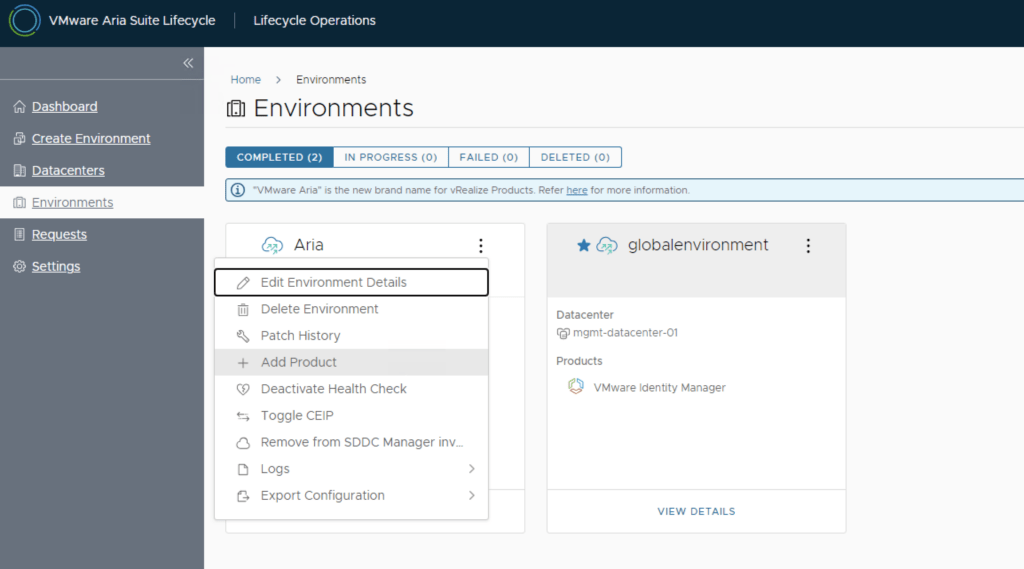
In a VMware Cloud Foundation (VCF) environment, managing logs effectively is crucial for monitoring, troubleshooting, and ensuring compliance. VMware Aria Operations for Logs (formerly vRealize Log Insight) provides centralized log collection, real-time analytics, and intelligent log correlation, making it an essential tool for proactive infrastructure management. This guide walks you through the step-by-step process of deploying VMware Aria Operations for Logs in a VCF 5.2.1 environment. Prerequisites VMware Cloud Foundation (VCF) 5.2.1: Confirm that your VCF environment is operational. Aria Lifecycle Manager (ALCM): Aria Lifecycle Manager 8.18 or compatible version installed and accessible. Network and DNS Configurations: Proper DNS and network settings to allow seamless communication among VMware components. VMware Identity Manager (vIDM): Configured and deployed for unified authentication across VMware products. If needed a guide can be found here. Step 1: Access Aria Lifecycle Manager Log in to the Aria Lifecycle Manager (ALCM) console with admin credentials. Ensure compatibility between ALCM and VCF 5.2.1 for a smooth deployment. Step 2: Add product in existing environment. Navigate to Lifecycle Operations. Under the existing environment click on the ellipsis. Click Add Product. ...

October 18, 2024 · 4 min · Cosmin
Article cover image

Deploying VMware Aria Automation in a VCF 5.2.1 Environment: Step-by-Step Guide

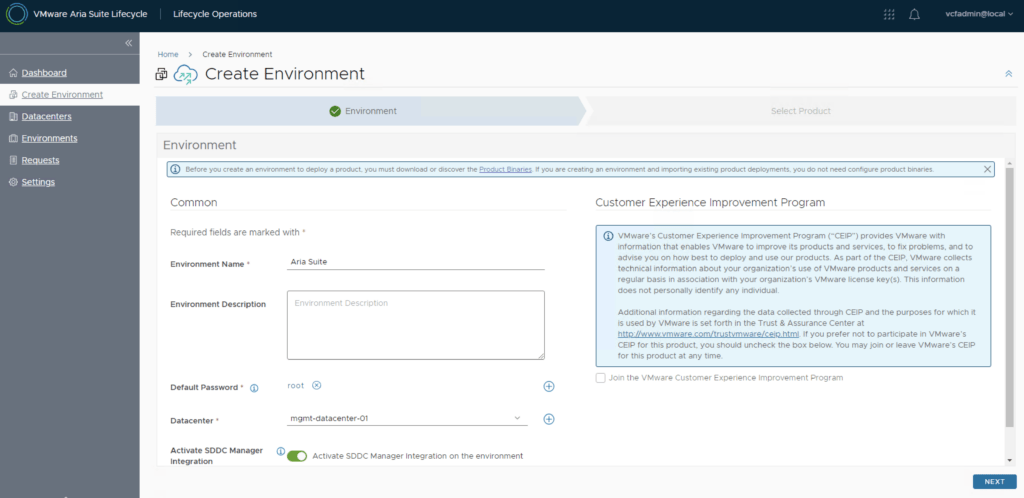
Following the deployment of vIDM which can be found here, deploying VMware Aria Automation (formerly known as vRealize Automation) enhances your VCF environment with powerful self-service provisioning, automated operations, and streamlined infrastructure management. This step-by-step guide will walk you through deploying Aria Automation using VMware Aria Lifecycle Manager in a VCF 5.2.1 environment, integrating it seamlessly with vIDM for Single Sign-On (SSO) and access management. Prerequisites VMware Cloud Foundation (VCF) 5.2.1 Environment: Ensure VCF 5.2.1 is fully set up and operational. Aria Lifecycle Manager (ALCM) Appliance: Make sure Aria Lifecycle Manager is installed and accessible. Identity Management (vIDM): Deployed and configured to allow SSO across VMware products. DNS and Network Configurations: Validated for reachability and FQDN resolution. Step 1: Access Aria Lifecycle Manager Log in to the Aria Lifecycle Manager (ALCM) console with admin credentials. Ensure your ALCM version aligns with VCF 5.2.1, ensuring compatibility. Step 2: Add an Environment in ALCM In ALCM, navigate to Environments and Add New Environment. Input environment details, such as name and description, to organize deployments within the ALCM. Select a Datacenter for the deployment. Click Next. ...

October 18, 2024 · 3 min · Cosmin
Article cover image

Deploying VMware Aria Operations 8.18 in a VCF 5.2.1 Environment: Step-by-Step Guide

Deploying VMware Aria Operations (formerly vRealize Operations) provides deep monitoring, analytics, and insights into your VMware Cloud Foundation (VCF) 5.2.1 environment. With Aria Lifecycle Manager (ALCM), the deployment and configuration of Aria Operations 8.18 are streamlined, allowing IT teams to maintain optimal performance, predict and prevent potential issues, and optimize resource utilization. This guide will take you through each step, ensuring Aria Operations is seamlessly deployed and integrated within your VCF environment. ...

October 16, 2024 · 3 min · Cosmin
Article cover image

Deploying vIDM Using Aria Lifecycle Manager in a VCF 5.2.1 Environment: Step-by-Step Guide

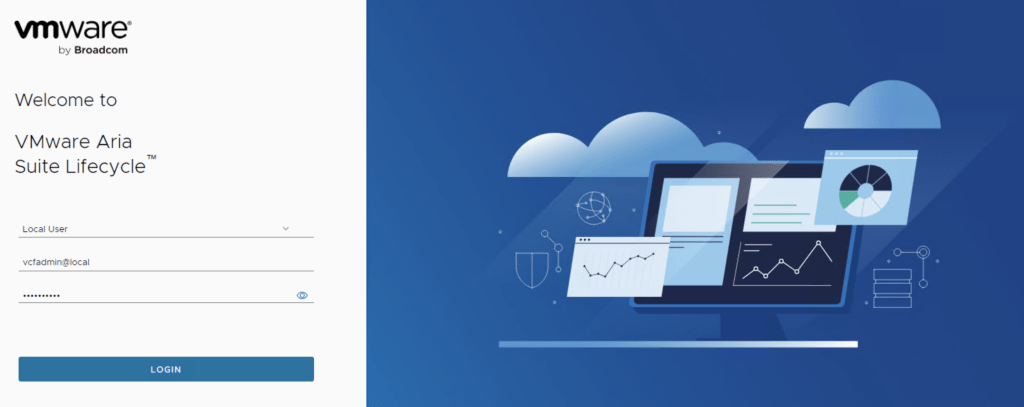
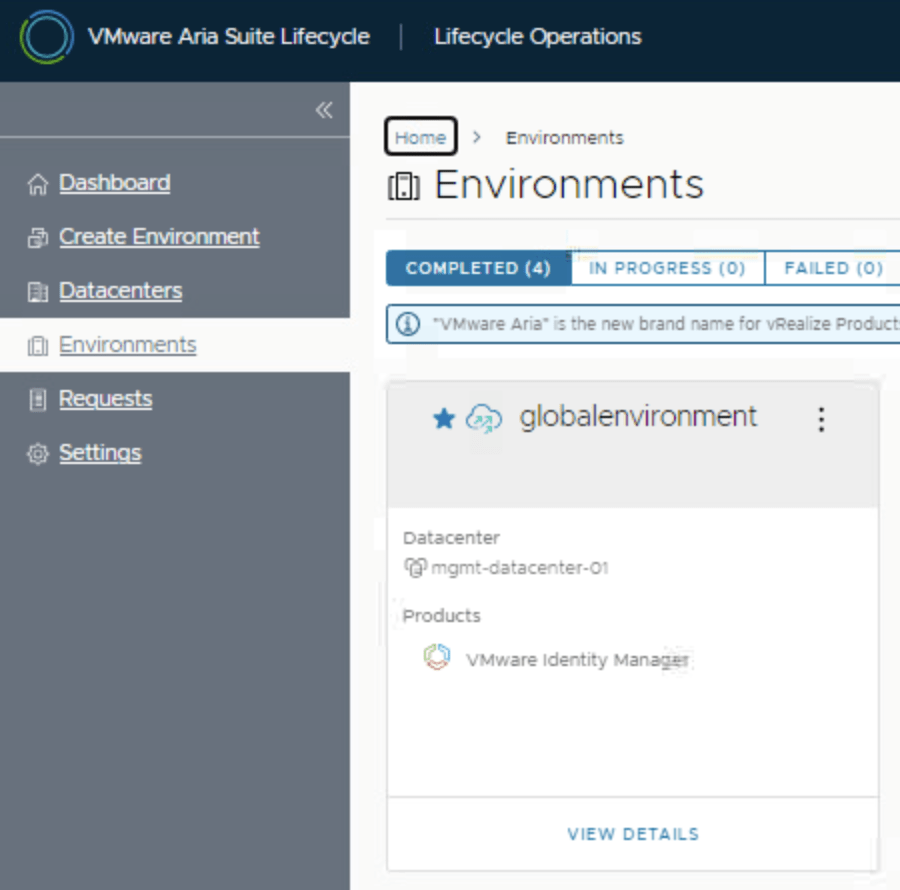
Deploying VMware Identity Manager (vIDM) in a VMware Cloud Foundation (VCF) 5.2.1 environment has been simplified with VMware Aria Lifecycle Manager. This guide walks you through setting up vIDM using Aria Suite Lifecycle Manager, ensuring streamlined access control across the VMware suite in your VCF deployment. The official documentation can be found here. Let’s dive in. Prerequisites VCF 5.2.1 Environment: Ensure your VCF environment is running version 5.2.1. A upgrade Guide can be found here. Aria Suite Lifecycle Manager Appliance: Aria Lifecycle Manager must be configured within the VCF environment. A deployment guide can be found here. Network and DNS: Verify that DNS and network configurations are set up for Aria Lifecycle Manager and the vIDM instance. Download VMware Aria product binaries from the Broadcom Support Portal. After downloading, you can either map them locally or use NFS to make them available. Access Aria Lifecycle Manager Log in to the Aria Lifecycle Manager UI. Use the administrator credentials configured during the initial setup (typically vcfadmin@local). Ensure that the Aria Suite Lifecycle Manager version is compatible with VCF 5.2.1 to avoid compatibility issues. ...

October 15, 2024 · 3 min · Cosmin
Article cover image

Step-by-Step Guide for Changing the IP Address in Workspace ONE Access 3.3.7

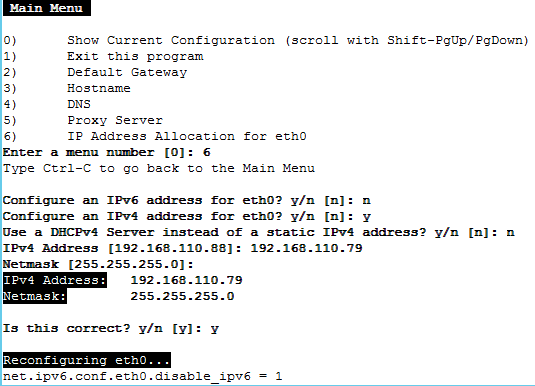
Changing the IP address of the Workspace ONE Access 3.3.7 appliance is a multi-step process that requires careful attention to avoid service disruptions. Below are the key steps involved: 1. Stop Workspace ONE Access Services SSH into the appliance and stop all services to prevent any inconsistencies during the IP address change. service horizon-workspace stop 2. Update DNS Entries Modify both forward and reverse DNS records to reflect the new IP address. This is crucial for both name resolution and certificate validation. 3. Update the IP Address Access the vami configuration interface using the following command: /opt/vmware/share/vami/vami_config_net Follow the on-screen instructions to change the IP address, gateway, and subnet mask as needed. ...

September 5, 2024 · 2 min · Cosmin
Article cover image

Configure NSX-T to use vIDM as authentication

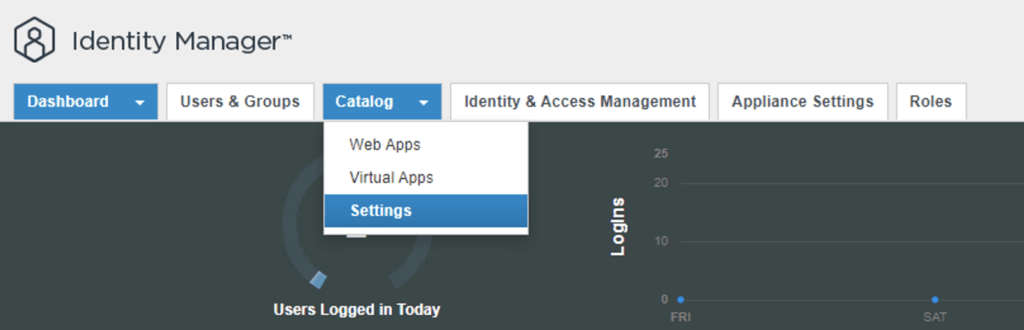
I needed to create a few additional accounts in NSX-T for outside sources. Instead of creating individual accounts i wanted to use the existing ones from AD. To get started we need to get the certificate from the vIDM server. Log on to the vIDM server as root and run the following: openssl1 s_client -connect <FQDN of vIDM host>:443 < /dev/null 2> /dev/null | openssl x509 -sha256 -fingerprint -noout -in /dev/stdin Next we need to create the OAuth client ID in vIDM. Log in to the vIDM UI using the url SAAS/admin/app/page#!/dashboard as admin and Navigate to Catalog -> Settings ...

March 3, 2023 · 2 min · Cosmin
Article cover image

Upgrading vIDM (VMware Identity Manager ) to 3.3.7 via vRSLCM

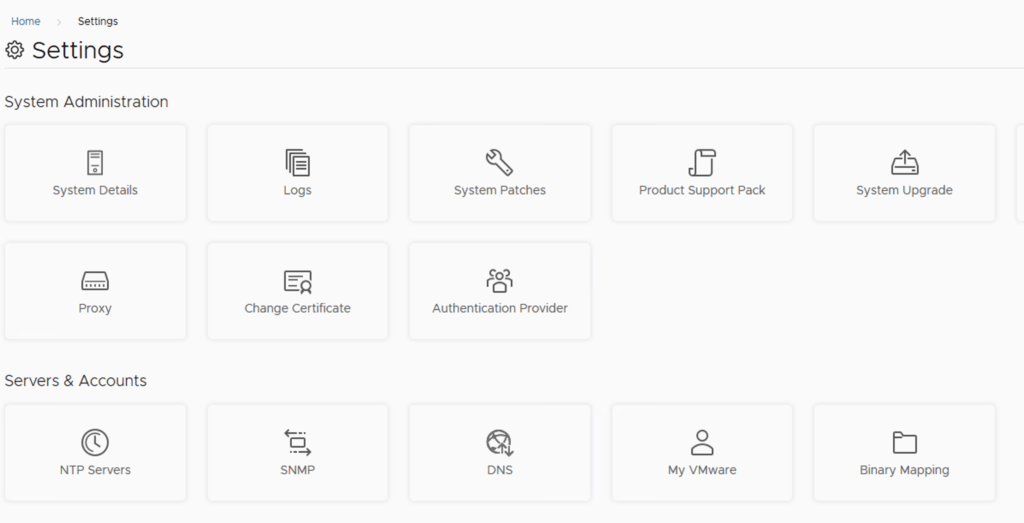
In this post i will go over upgrading my 3.3.6 vIDM appliance to 3.3.7 using vRSLCM (vRealize Suite Lifecycle Manager). If you want to upgrade to LCM 8.10 instructions can be found here. The upgrade does not include the latest PSPACK that contains the 3.3.7 vIDM release. Instructions to get the PSPACK can be found on my other blog post here. To get started we can go to vRealize Lifecycle Manager -> Lifecycle Operations -> Settings -> Binary Mapping. (If you haven’t added your My VMware credentials you will need to do that first by going to vRealize Lifecycle Manager -> Lifecycle Operations -> Settings -> My VMware) ...

February 3, 2023 · 3 min · Cosmin
Article cover image

Upgrading vIDM (VMware Identity Manager ) to 3.3.6 via vRSLCM

In this post i will go over upgrading my 3.3.5 vIDM appliance to 3.3.6 using vRSLCM (vRealize Suite Lifecycle Manager). If you want to upgrade to LCM 8.6 instructions can be found here. The upgrade already includes the latest Product Support Pack so an update to the Product Support Pack is not required. To get started we can go to vRealize Lifecycle Manager -> Lifecycle Operations -> Settings -> Binary Mapping. (If you haven’t added your My VMware credentials you will need to do that first by going to vRealize Lifecycle Manager -> Lifecycle Operations -> Settings -> My VMware) ...

April 1, 2022 · 2 min · Cosmin