Step-by-Step Guide to Deploying Salt Open Source

Salt (SaltStack) is a powerful open-source configuration management and automation tool. Below is a step-by-step guide to deploying Salt Open Source for centralized configuration and management. Step 1: Update Your System Before installing Salt, update your package repositories and upgrade your system packages: sudo apt update sudo apt upgrade -y Step 2: Install Salt Master On your master server, install the Salt master package: sudo apt install salt-master -y Step 3: Configure Salt Master ...

April 9, 2025 · 2 min · Cosmin
Article cover image

Upgrading Aria Operations to 8.18.2 Using a .PAK File

Upgrading Aria Operations (formerly VMware vRealize Operations) is a crucial task to ensure you’re using the latest features, security patches, and performance improvements. In this guide, we’ll walk through the step-by-step process of upgrading Aria Operations using a .pak file. Prerequisites Before starting the upgrade, ensure the following prerequisites are met: Backup the Existing Deployment: • Take a snapshot of all nodes in the Aria Operations (Master, Cloud proxies, and any other nodes). ...

January 16, 2025 · 3 min · Cosmin
Article cover image

Upgrading Aria Automation to 8.18.1 Patch 1

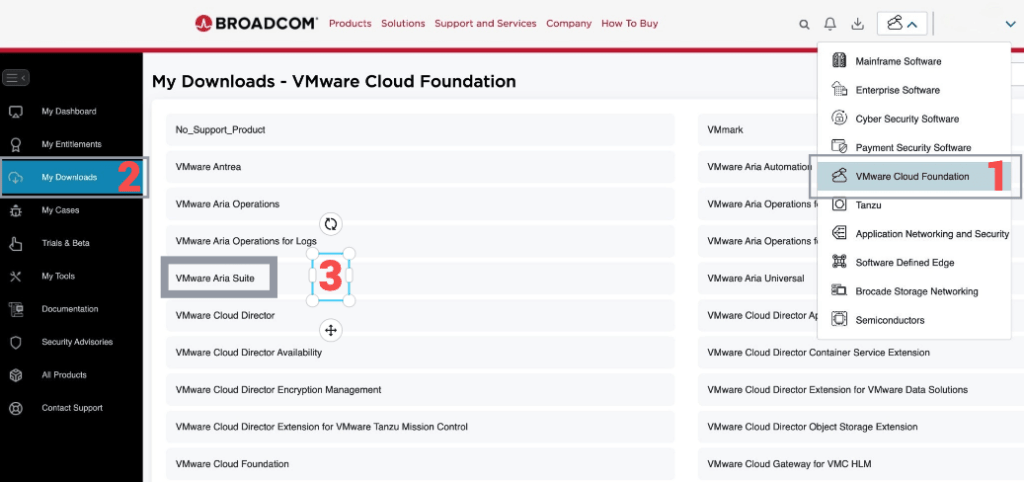
In this post, I will cover upgrading my 8.x Aria Automation appliance to version 8.18.1 Patch 1. As a prerequisite, we need to have Aria Suite Lifecycle upgraded to 8.18. Instructions can be found here. Note that the upgrade does not include the latest PSPACK containing the 8.18.1 Patch 1 Aria Automation release. Instructions for obtaining the PSPACK are available in here. Note: Following the VMware by Broadcom Day 2 transition on May 6, 2024, Customer Connect has been migrated to the Broadcom Support. This migration impacts the VMware Aria Suite Lifecycle as follows: All Product Support Packs, along with product and patch binaries, will now need to be downloaded from the Broadcom Support Portal Users must then manually map these into the VMware Aria Suite Lifecycle VMware Aria Suite Lifecycle can be upgraded using “Check Online” method. Product Support Packs are cumulative, incorporating all updates from previous product support packs as well as patches into the latest version. The Aria Automation Patch 1 binaries can be downloaded from here. In my case, it was VMware Aria Automation 8.18.1 .patch file (vrlcm-vra-8.18.1-8.18.1.36859.patch). Once downloaded, LCM supports local mappings. In my case, I uploaded the patch in /data/temp ...

January 16, 2025 · 2 min · Cosmin
Article cover image

Step-by-Step Guide: Upgrading Aria Operations for Logs to 8.18.1 Using a .PAK File

Upgrading Aria Operations for Logs (formerly VMware vRealize Log Insight) is a crucial task to ensure you’re using the latest features, security patches, and performance improvements. In this guide, we’ll walk through the step-by-step process of upgrading Aria Operations for Logs using a .pak file. Prerequisites Before starting the upgrade, ensure the following prerequisites are met: Backup the Existing Deployment: • Take a snapshot of all nodes in the Aria Operations for Logs cluster (Master, Worker, and any nodes). ...

January 16, 2025 · 3 min · Cosmin
Article cover image

Upgrading Aria Operations for Logs to 8.18.1 via VMware Aria Suite Lifecycle

In this post, I will guide you through upgrading your 8.x vRLI appliance to Aria Operations for Logs 8.18.1 using VMware Aria Suite Lifecycle. Before proceeding, ensure that your VMware Aria Suite Lifecycle is upgraded to version 8.18. You can find the upgrade instructions here. Note that the upgrade does not include the latest PSPACK containing the 8.18.1 Aria Operations for Logs release. Instructions for obtaining the PSPACK are available in here. ...

January 16, 2025 · 2 min · Cosmin
Article cover image

Aria Suite Lifecycle 8.18 Product Support Pack (PSPACK4) upgrade - manual version

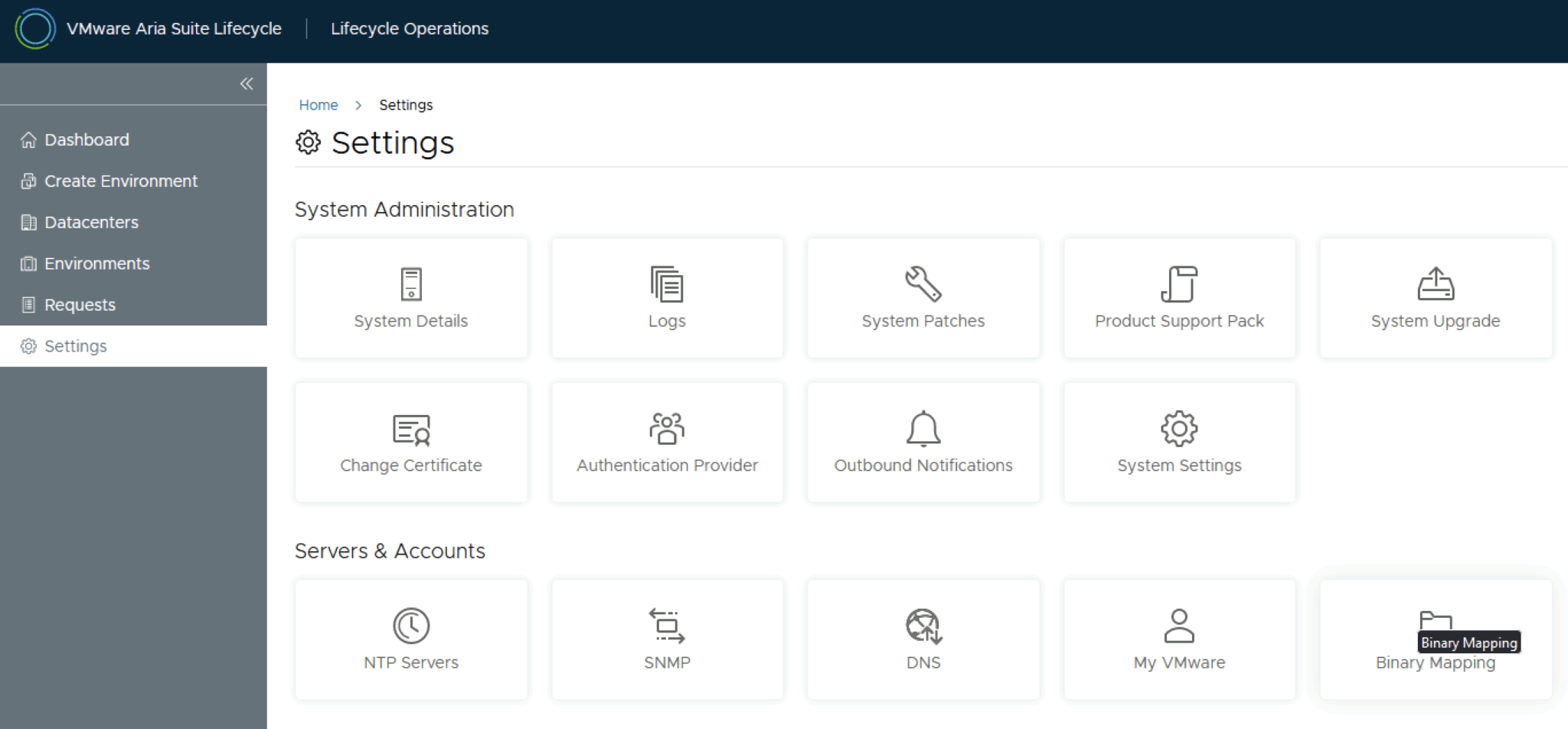
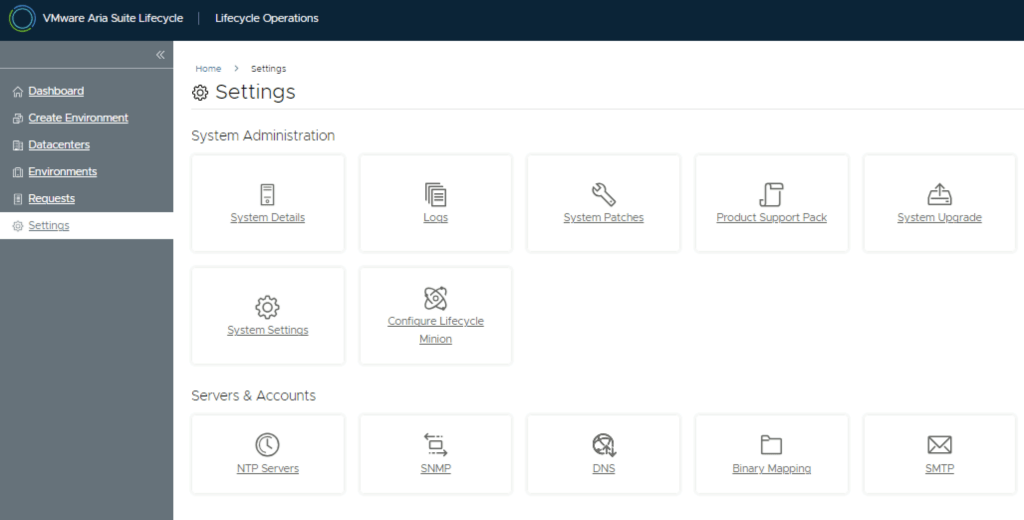
In this guide i will go over the manual steps of getting an existing 8.x Aria Suite Lifecycle appliance to support the latest product releases available. Here is a great blog that goes in to the details about what the Product Support Pack is https://blogs.vmware.com/management/2019/01/vrslcm-pspak.html. Typically the newer Product Support Pack is included part of the upgrade for Aria Suite Lifecycle, however sometimes there are product releases in between releases where product support packs come in handy. As of 8.16.0 Product Support Pack 4 we can no longer automatically download the Product Support Pack files. The release notes can be found here. ...

January 16, 2025 · 2 min · Cosmin
Article cover image

Deploying vIDM Using Aria Lifecycle Manager in a VCF 5.2.1 Environment: Step-by-Step Guide

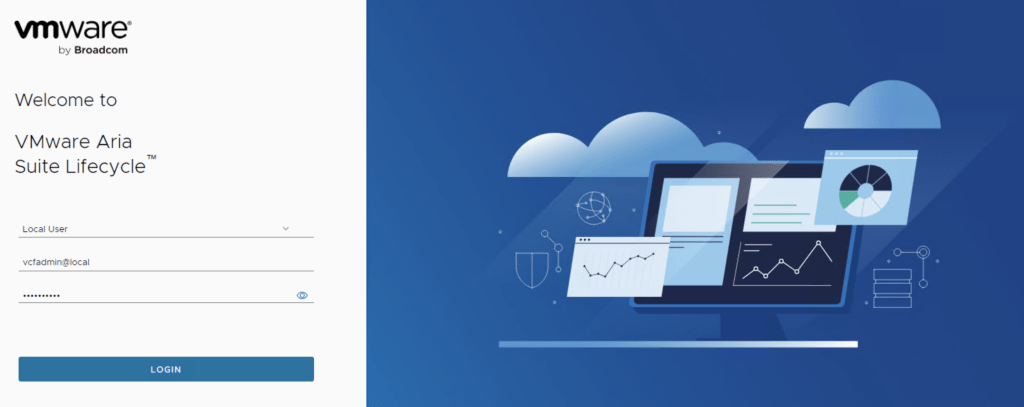
Deploying VMware Identity Manager (vIDM) in a VMware Cloud Foundation (VCF) 5.2.1 environment has been simplified with VMware Aria Lifecycle Manager. This guide walks you through setting up vIDM using Aria Suite Lifecycle Manager, ensuring streamlined access control across the VMware suite in your VCF deployment. The official documentation can be found here. Let’s dive in. Prerequisites VCF 5.2.1 Environment: Ensure your VCF environment is running version 5.2.1. A upgrade Guide can be found here. Aria Suite Lifecycle Manager Appliance: Aria Lifecycle Manager must be configured within the VCF environment. A deployment guide can be found here. Network and DNS: Verify that DNS and network configurations are set up for Aria Lifecycle Manager and the vIDM instance. Download VMware Aria product binaries from the Broadcom Support Portal. After downloading, you can either map them locally or use NFS to make them available. Access Aria Lifecycle Manager Log in to the Aria Lifecycle Manager UI. Use the administrator credentials configured during the initial setup (typically vcfadmin@local). Ensure that the Aria Suite Lifecycle Manager version is compatible with VCF 5.2.1 to avoid compatibility issues. ...

October 15, 2024 · 3 min · Cosmin
Article cover image

Aria Suite Lifecycle 8.18 Product Support Pack (PSPACK) upgrade - manual version

In this guide i will go over the manual steps of getting an existing 8.x Aria Suite Lifecycle appliance to support the latest product releases available. Here is a great blog that goes in to the details about what the Product Support Pack is https://blogs.vmware.com/management/2019/01/vrslcm-pspak.html. Typically the newer Product Support Pack is included part of the upgrade for Aria Suite Lifecycle, however sometimes there are product releases in between releases where product support packs come in handy. As of 8.16.0 Product Support Pack 4 we can no longer automatically download the Product Support Pack files. The release notes can be found here. ...

October 15, 2024 · 2 min · Cosmin
Article cover image

Upgrading VMware Aria Automation to 8.18

In this post, I will cover upgrading my 8.x Aria Automation appliance to version 8.18. As a prerequisite, we need to have VMware Aria Suite Lifecycle upgraded to 8.18. Instructions can be found here. Note: Following the VMware by Broadcom Day 2 transition on May 6, 2024, Customer Connect has been migrated to the Broadcom Support. This migration impacts the VMware Aria Suite Lifecycle as follows: All Product Support Packs, along with product and patch binaries, will now need to be downloaded from the Broadcom Support Portal Users must then manually map these into the VMware Aria Suite Lifecycle VMware Aria Suite Lifecycle can be upgraded using “Check Online” method. Product Support Packs are cumulative, incorporating all updates from previous product support packs as well as patches into the latest version. The Aria Automation binaries can be downloaded from here. In my case, it was VMware Aria Automation 8.18.0 Update Repository (Prelude_VA-8.18.0.35770-24024333-updaterepo.iso). Once downloaded, LCM supports local or NFS mappings. In my case, I uploaded the binary in /data ...

July 28, 2024 · 3 min · Cosmin

Upgrading Aria Automation to 8.18 via CLI: A Step-by-Step Guide

Upgrading Aria Automation (formerly known as vRealize Automation, vRA) is crucial for maintaining the efficiency, security, and compatibility of your automation tasks. For environments without VMware Aria Suite Lifecycle, you can still perform the upgrade using the vracli command-line utility. This blog post will guide you through the process of upgrading Aria Automation using two different methods: from a mounted ISO (CD-ROM) and from an online update repository URL. Prerequisites SSH access to your Aria Automation appliance. Sufficient backup of your Aria Automation environment. Downloaded ISO for the Aria Automation upgrade, if using the CD-ROM method. Link to the download Access to the Aria Automation appliance with root privileges. Check the health of the pods by running kubectl get pods -n prelude The upgrade will fail if any pods are in a non Running state. Method 1: Upgrading from a Mounted ISO (CD-ROM) Prepare the ISO Image: Before starting, ensure that the ISO image for the Aria Automation upgrade is downloaded and available. Mount the ISO to the Appliance: Mount the ISO image to your Aria Automation appliance. This step might require physical access to the server or through the management interface provided by your hypervisor (e.g., ESXi). To mount the CD-ROM we can use: mount /dev/sr0 /mnt/cdrom SSH into the Aria Automation Appliance: Access your appliance via SSH as the root user. Execute the Upgrade Command: Run the following command to start the upgrade process: vracli upgrade exec -y --profile lcm --repo cdrom:// This command will automatically start the upgrade process using the ISO mounted on the CD-ROM drive. The -y flag automates the acceptance of the upgrade process, and --profile lcm specifies the use of the lifecycle manager upgrade profile, even though the Lifecycle Manager itself is not being used. Monitor the Upgrade Process: The upgrade process will provide output to the console. Monitor this output for any errors or prompts that require manual intervention. Use 'vracli upgrade status --follow' to monitor the progress. Finalize the Upgrade: Once the upgrade completes, follow any on-screen instructions to finalize the upgrade. This may include rebooting the Aria Automation appliance. Post-Upgrade Steps Verify the Upgrade: Log in to the Aria Automation user interface to verify that the upgrade was successful and all services are running correctly. Review Logs: Check the upgrade logs for any warnings or errors that might need attention. Test Deployments: Execute a few test deployments to ensure that all functionalities are working as expected. Conclusion Upgrading Aria Automation without the Lifecycle Manager is straightforward with the vracli utility. Whether you’re upgrading from a mounted ISO or an online repository, the process is designed to be seamless. Always ensure that you have backups and a rollback plan in case of any issues.
July 28, 2024 · 3 min · Cosmin