Article cover image

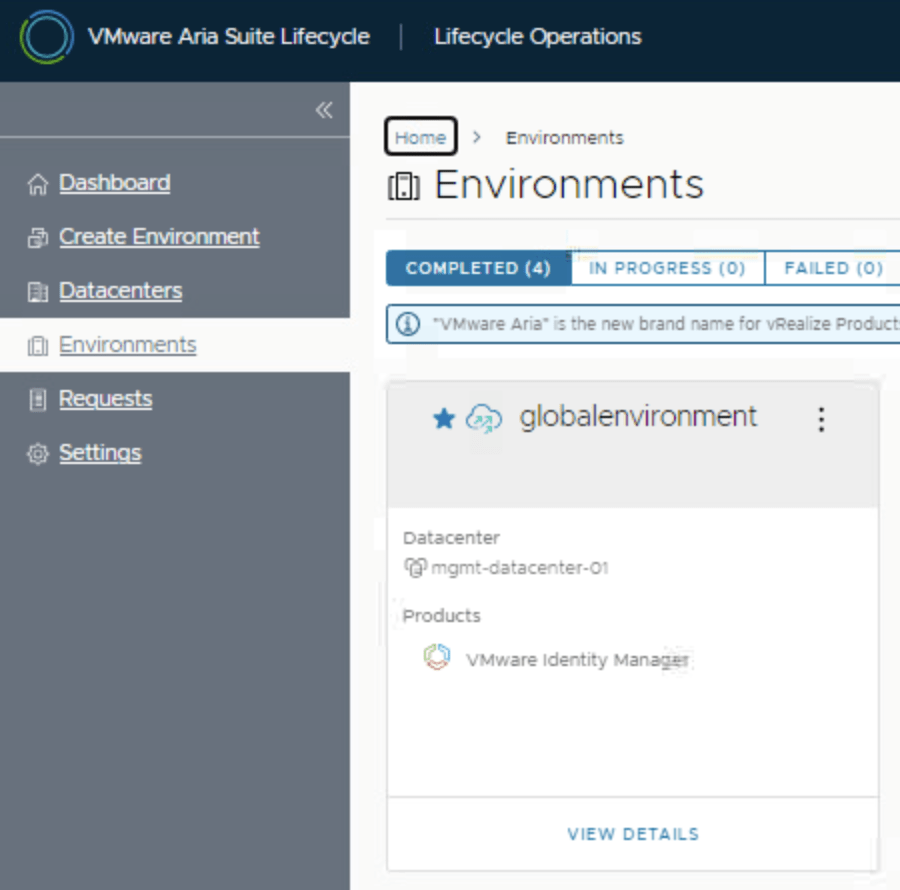
Replacing the VMware Identity Manager (vIDM) Certificate using VMware Aria Suite Lifecycle 8.18

Overview: Why and When to Replace the vIDM Certificate VMware Identity Manager (vIDM), also known as Workspace ONE Access, uses an SSL certificate to secure its web interface and establish trust with integrated VMware products (like vRealize/Aria Automation and Operations). Replacing this certificate is important in scenarios such as: Certificate Expiry: SSL certificates have expiration dates. You should replace the vIDM certificate before it expires to avoid service disruptions. An expired certificate can cause login failures and management tasks (like powering on vIDM or updating it) to fail. Self-Signed to CA-Signed: Out-of-the-box or lab deployments often use self-signed certificates, which trigger browser warnings and may not be trusted by other systems. Replacing a self-signed certificate with one signed by a trusted Certificate Authority (CA) eliminates these trust warnings and meets security compliance requirements. Security or Policy Requirements: Your organization might require using specific corporate CA certificates or updating certificates periodically for security. If the current certificate was compromised or if the domain name of the vIDM appliance changes, a replacement is needed. Integration Trust Issues: vIDM acts as the authentication provider for other VMware products. If those products do not trust vIDM’s certificate (e.g., after an update or if using a new CA), you should replace or re-trust the certificate to ensure seamless integration. In summary, proactively replace the vIDM certificate before it expires or whenever you need to switch to a certificate signed by a trusted CA. This ensures uninterrupted user access and integration with other services. Always schedule certificate updates during a maintenance window, as the process will restart services on vIDM and could temporarily disrupt logins. ...
May 8, 2025 · 22 min · Cosmin

Understanding VMSA-2025-0004 and Protecting Your VMware Environment

Today, I’m diving into a critical issue that demands immediate attention for anyone managing VMware environments: VMSA-2025-0004. Released by Broadcom on March 4, 2025, this security advisory highlights severe vulnerabilities in VMware ESXi, Workstation, and Fusion—products that form the backbone of many virtualized infrastructures. Here’s what you need to know and how to respond, especially since patches are not yet available as of this writing. What is VMSA-2025-0004? VMSA-2025-0004 addresses multiple vulnerabilities that could allow attackers to compromise VMware’s virtualization platforms. The most alarming of these is CVE-2025-22224, a Time-of-Check Time-of-Use (TOCTOU) vulnerability leading to an out-of-bounds write. Rated as critical with a CVSSv3 score of 9.3, this flaw enables a malicious actor with local administrative privileges on a virtual machine (VM) to execute code as the VMX process on the host. In plain terms, an attacker could break out of the VM and take over the hypervisor, potentially gaining control of the host and all VMs running on it. ...

March 4, 2025 · 5 min · Cosmin

Setting User SSH Keys in NSX

In VMware NSX, configuring SSH keys for users with specific labels and types provides a tailored access control approach that enhances both security and management capabilities. This blog walks through the process of setting user-specific SSH keys in NSX, using customized labels and types for better organization and identification. Overview SSH keys are crucial for secure authentication in NSX environments, allowing administrators to manage access without exposing systems to the risks of password-based logins. By setting SSH keys with specific labels and types, you can streamline user access management and improve security configurations. ...

January 28, 2025 · 3 min · Cosmin
Article cover image

Upgrading Aria Operations to 8.18.2 Using a .PAK File

Upgrading Aria Operations (formerly VMware vRealize Operations) is a crucial task to ensure you’re using the latest features, security patches, and performance improvements. In this guide, we’ll walk through the step-by-step process of upgrading Aria Operations using a .pak file. Prerequisites Before starting the upgrade, ensure the following prerequisites are met: Backup the Existing Deployment: • Take a snapshot of all nodes in the Aria Operations (Master, Cloud proxies, and any other nodes). ...

January 16, 2025 · 3 min · Cosmin
Article cover image

Step-by-Step Guide: Upgrading Aria Operations for Logs to 8.18.1 Using a .PAK File

Upgrading Aria Operations for Logs (formerly VMware vRealize Log Insight) is a crucial task to ensure you’re using the latest features, security patches, and performance improvements. In this guide, we’ll walk through the step-by-step process of upgrading Aria Operations for Logs using a .pak file. Prerequisites Before starting the upgrade, ensure the following prerequisites are met: Backup the Existing Deployment: • Take a snapshot of all nodes in the Aria Operations for Logs cluster (Master, Worker, and any nodes). ...

January 16, 2025 · 3 min · Cosmin

Upgrading Aria Automation to 8.18 via CLI: A Step-by-Step Guide

Upgrading Aria Automation (formerly known as vRealize Automation, vRA) is crucial for maintaining the efficiency, security, and compatibility of your automation tasks. For environments without VMware Aria Suite Lifecycle, you can still perform the upgrade using the vracli command-line utility. This blog post will guide you through the process of upgrading Aria Automation using two different methods: from a mounted ISO (CD-ROM) and from an online update repository URL. Prerequisites SSH access to your Aria Automation appliance. Sufficient backup of your Aria Automation environment. Downloaded ISO for the Aria Automation upgrade, if using the CD-ROM method. Link to the download Access to the Aria Automation appliance with root privileges. Check the health of the pods by running kubectl get pods -n prelude The upgrade will fail if any pods are in a non Running state. Method 1: Upgrading from a Mounted ISO (CD-ROM) Prepare the ISO Image: Before starting, ensure that the ISO image for the Aria Automation upgrade is downloaded and available. Mount the ISO to the Appliance: Mount the ISO image to your Aria Automation appliance. This step might require physical access to the server or through the management interface provided by your hypervisor (e.g., ESXi). To mount the CD-ROM we can use: mount /dev/sr0 /mnt/cdrom SSH into the Aria Automation Appliance: Access your appliance via SSH as the root user. Execute the Upgrade Command: Run the following command to start the upgrade process: vracli upgrade exec -y --profile lcm --repo cdrom:// This command will automatically start the upgrade process using the ISO mounted on the CD-ROM drive. The -y flag automates the acceptance of the upgrade process, and --profile lcm specifies the use of the lifecycle manager upgrade profile, even though the Lifecycle Manager itself is not being used. Monitor the Upgrade Process: The upgrade process will provide output to the console. Monitor this output for any errors or prompts that require manual intervention. Use 'vracli upgrade status --follow' to monitor the progress. Finalize the Upgrade: Once the upgrade completes, follow any on-screen instructions to finalize the upgrade. This may include rebooting the Aria Automation appliance. Post-Upgrade Steps Verify the Upgrade: Log in to the Aria Automation user interface to verify that the upgrade was successful and all services are running correctly. Review Logs: Check the upgrade logs for any warnings or errors that might need attention. Test Deployments: Execute a few test deployments to ensure that all functionalities are working as expected. Conclusion Upgrading Aria Automation without the Lifecycle Manager is straightforward with the vracli utility. Whether you’re upgrading from a mounted ISO or an online repository, the process is designed to be seamless. Always ensure that you have backups and a rollback plan in case of any issues.

July 28, 2024 · 3 min · Cosmin

Upgrading Aria Automation via CLI: A Step-by-Step Guide

Upgrading Aria Automation (formerly known as vRealize Automation, vRA) is crucial for maintaining the efficiency, security, and compatibility of your automation tasks. For environments without VMware Aria Suite Lifecycle, you can still perform the upgrade using the vracli command-line utility. This blog post will guide you through the process of upgrading Aria Automation using two different methods: from a mounted ISO (CD-ROM) and from an online update repository URL. Prerequisites SSH access to your Aria Automation appliance. Sufficient backup of your Aria Automation environment. Downloaded ISO for the Aria Automation upgrade, if using the CD-ROM method. Access to the Aria Automation appliance with root privileges. Method 1: Upgrading from a Mounted ISO (CD-ROM) Prepare the ISO Image: Before starting, ensure that the ISO image for the Aria Automation upgrade is downloaded and available. Mount the ISO to the Appliance: Mount the ISO image to your Aria Automation appliance. This step might require physical access to the server or through the management interface provided by your hypervisor (e.g., ESXi). To mount the CD-ROM we can use: mount /dev/sr0 /mnt/cdrom SSH into the Aria Automation Appliance: Access your appliance via SSH as the root user. Execute the Upgrade Command: Run the following command to start the upgrade process: vracli upgrade exec -y --profile lcm --repo cdrom:// This command will automatically start the upgrade process using the ISO mounted on the CD-ROM drive. The -y flag automates the acceptance of the upgrade process, and --profile lcm specifies the use of the lifecycle manager upgrade profile, even though the Lifecycle Manager itself is not being used. Monitor the Upgrade Process: The upgrade process will provide output to the console. Monitor this output for any errors or prompts that require manual intervention. Use 'vracli upgrade status --follow' to monitor the progress. Finalize the Upgrade: Once the upgrade completes, follow any on-screen instructions to finalize the upgrade. This may include rebooting the Aria Automation appliance. Method 2: Upgrading from an Online Update Repository URL SSH into the Aria Automation Appliance: Ensure you have SSH access to the appliance as the root user. Determine the Repository URL: Identify the URL of the update repository you intend to use for the upgrade. This URL should point to the VMware online repository or an internally hosted repository mirror. Execute the Upgrade Command: Use the following command to initiate the upgrade from the online repository: vracli upgrade exec --profile lcm -r <url> Replace <url> with the actual URL of your update repository. Similar to the CD-ROM method, --profile lcm indicates the lifecycle manager upgrade profile. Monitor the Upgrade Process: As with the ISO method, keep an eye on the console output for any actions required on your part. Use 'vracli upgrade status --follow' to monitor the progress. Complete the Upgrade: After the upgrade process finishes, perform any additional steps prompted by the system, which may include system reboots. Post-Upgrade Steps Verify the Upgrade: Log in to the Aria Automation user interface to verify that the upgrade was successful and all services are running correctly. Review Logs: Check the upgrade logs for any warnings or errors that might need attention. Test Deployments: Execute a few test deployments to ensure that all functionalities are working as expected. Conclusion Upgrading Aria Automation without the Lifecycle Manager is straightforward with the vracli utility. Whether you’re upgrading from a mounted ISO or an online repository, the process is designed to be seamless. Always ensure that you have backups and a rollback plan in case of any issues.

July 28, 2024 · 3 min · Cosmin

Setting User SSH Keys in NSX: A Guide for Custom Labels and Types

In VMware NSX, configuring SSH keys for users with specific labels and types provides a tailored access control approach that enhances both security and management capabilities. This blog walks through the process of setting user-specific SSH keys in NSX, using customized labels and types for better organization and identification. Overview SSH keys are crucial for secure authentication in NSX environments, allowing administrators to manage access without exposing systems to the risks of password-based logins. By setting SSH keys with specific labels and types, you can streamline user access management and improve security configurations. ...

May 1, 2024 · 3 min · Cosmin

Enhancing vCenter Server Firewall Management with Ansible

In today’s dynamic IT environments, maintaining a secure and efficient infrastructure is paramount. For VMware vSphere administrators, managing the firewall settings on vCenter servers is a critical task that ensures the security of the entire virtualized infrastructure. Ansible, an open-source automation tool, offers a streamlined approach to managing firewall settings across multiple vCenter servers. This blog post will guide you through automating vCenter server firewall configurations using Ansible, showcasing how to apply these changes across multiple servers seamlessly. ...

March 21, 2024 · 3 min · Cosmin

Streamlining vCenter Server Firewall Management with SaltStack Config

In the realm of VMware vSphere management, securing your vCenter Server is critical to maintaining a robust and secure infrastructure. SaltStack Config, integrated into VMware’s vRealize Automation suite, offers a powerful way to automate and manage configurations across your VMware environment, including firewall settings. This blog explores how to leverage SaltStack Config to automate firewall adjustments on your vCenter servers, ensuring consistent security policies and simplifying the process across multiple instances. ...

March 21, 2024 · 3 min · Cosmin