Error LCMVRNICONFIG90115 in VMware Aria Suite Lifecycle Manager

If you’re a system administrator or IT professional working with VMware Aria Suite Lifecycle Manager, you might have hit a roadblock when trying to import a VMware Aria Operations for Networks instance. The error in question? LCMVRNICONFIG90115. Here’s what it looks like: Error Code: LCMVRNICONFIG90115 Invalid credentials provided for Console user. Please retry with correct console password. Invalid credentials provided for Console user. Please retry with correct console password. On the surface, this error screams “wrong password!” But even if you’re certain the credentials are spot-on, the issue might persist. Spoiler alert: the fix lies in enabling FIPS mode on the Aria Suite Lifecycle appliance. In this blog post, I’ll break down why this error happens, how FIPS mode resolves it, and provide a step-by-step guide to get you back on track. ...
February 27, 2025 · 4 min · Cosmin
Article cover image

Upgrading vRNI (vRealize Network Insight) to 6.5.1 via vRSLCM

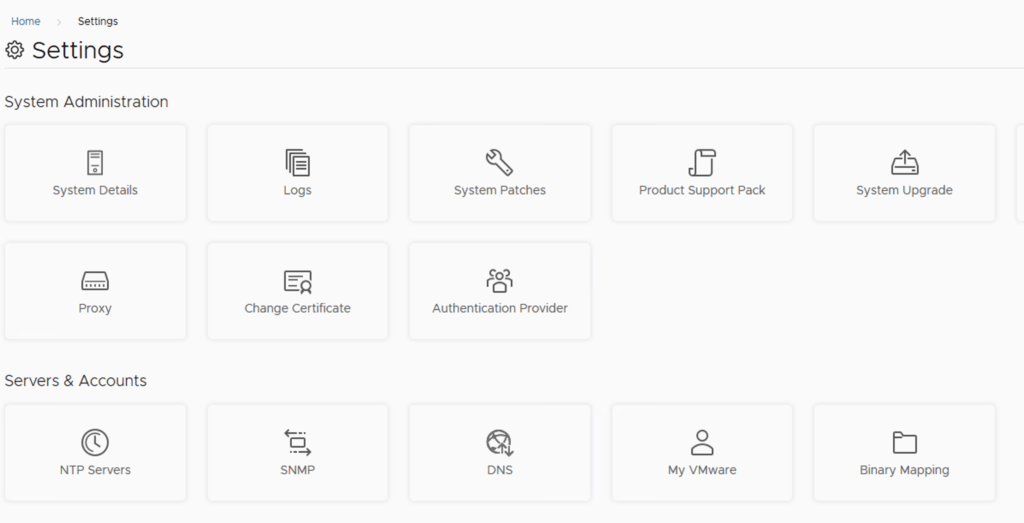
In this post i will go over upgrading my 6.x vRNI appliance to 6.5.1 using vRSLCM (vRealize Suite Lifecycle Manager). As a pre requirement we do need to have vRSLCM (vRealize Lifecycle Manager) upgraded to 8.7. Instructions can be found here. The upgrade already includes the latest Product Support Pack so an update to the Product Support Pack is not required. To get started we can go to vRealize Lifecycle Manager -> Lifecycle Operations -> Settings -> Binary Mapping. (If you haven’t added your My VMware credentials you will need to do that first by going to vRealize Lifecycle Manager -> Lifecycle Operations -> Settings -> My VMware) ...

March 23, 2022 · 2 min · Cosmin
Article cover image

Upgrading vRNI (vRealize Network Insight) to 6.4.0 via vRSLCM

In this post i will go over upgrading my 6.x vRNI appliance to 6.4.0 using vRSLCM (vRealize Suite Lifecycle Manager). As a pre requirement we do need to have vRSLCM (vRealize Lifecycle Manager) upgraded to 8.6. Instructions can be found here. The upgrade already includes the latest Product Support Pack so an update to the Product Support Pack is not required. To get started we can go to vRealize Lifecycle Manager -> Lifecycle Operations -> Settings -> Binary Mapping. (If you haven’t added your My VMware credentials you will need to do that first by going to vRealize Lifecycle Manager -> Lifecycle Operations -> Settings -> My VMware) ...

October 27, 2021 · 2 min · Cosmin
Article cover image

vRSLCM (vRealize Lifecycle Manager) Product Support Pack

In this guide i will go over the steps of getting an existing 8.x vRSLCM appliance to support the latest product releases available. Here is a great blog that goes in to the details about what the Product Support Pack is https://blogs.vmware.com/management/2019/01/vrslcm-pspak.html. Typically the newer Product Support Pack is included part of the upgrade for LCM, however sometimes there are product releases in between releases where product support packs come in handy. ...

August 4, 2021 · 1 min · Cosmin
Article cover image

Changing passwords for the vRealize suite via vRSLCM (vRealize Suite Lifecycle Manager)

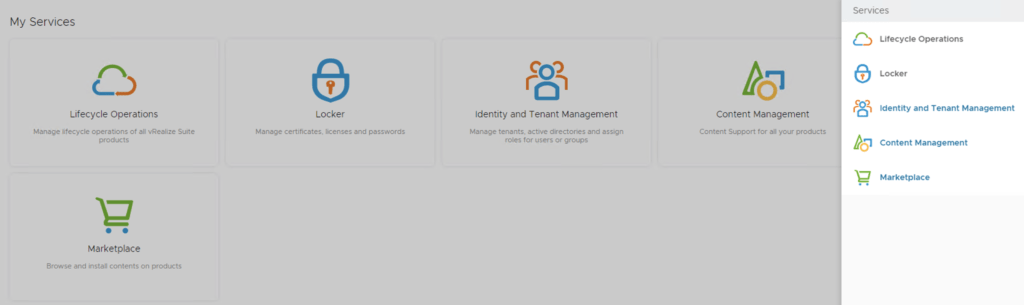
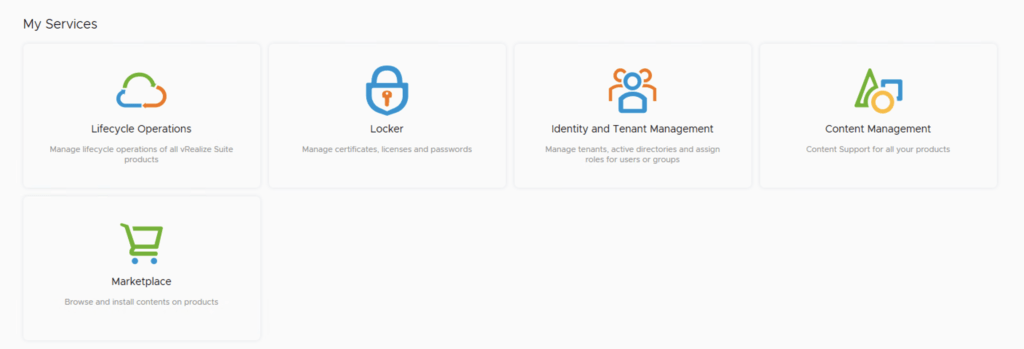
In this guide i will go over one of the Locker feature in vRealize Lifecycle Manager specifically the password management. As a reminder vRSLCM can manage the following: Type of Password Change vRealize Product Name Admin Password Change vRealize Automation, vRealize Operations Manager, vRealize Network Insight, vRealize Log Insight, VMware Identity Manager Root Password Change vRealize Automation, vRealize Operations Manager, vRealize Network Insight, vRealize Log Insight, VMware Identity Manager Support Password Change vRealize Network Insight Console User Password Change vRealize Network Insight SSH User Password Change VMware Identity Manager The first step is to create a new password. We can do so by going to Locker from the welcome screen or the menu on top right ...

May 19, 2021 · 2 min · Cosmin