Article cover image

Upgrading VCF 5.x to VCF 5.2.1 Step by Step

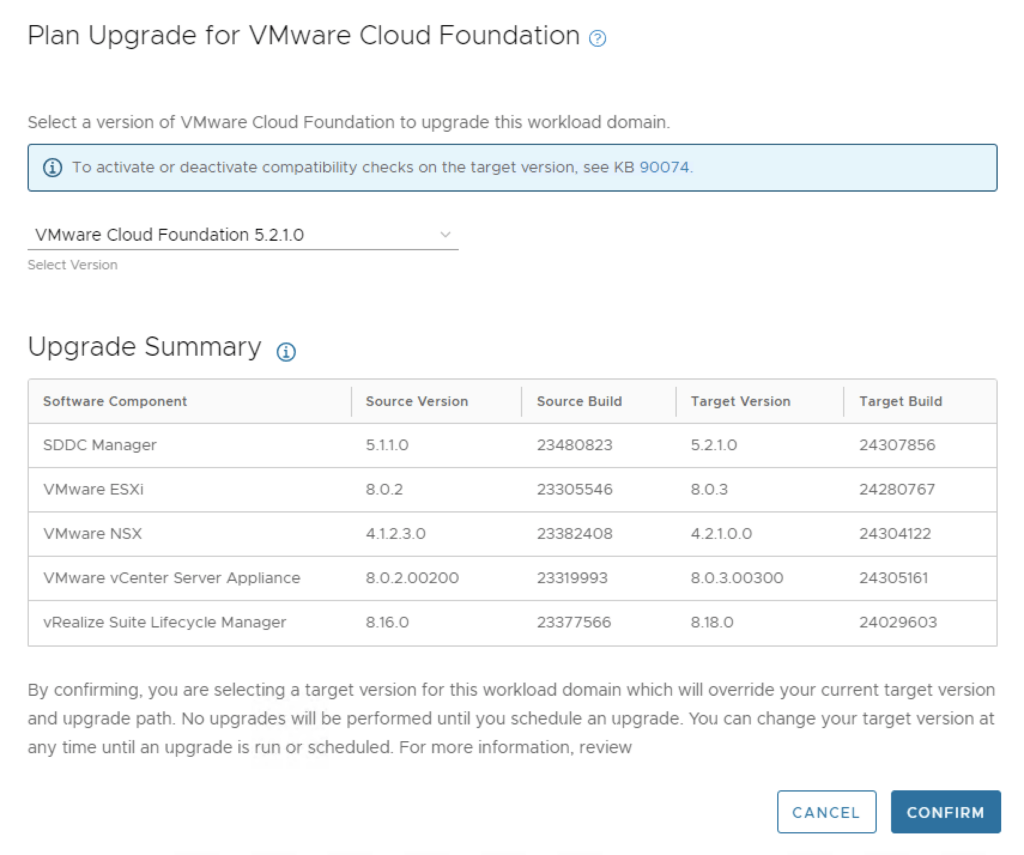
With the release of VCF 5.2.1 I wanted to get my lab upgraded. The release blog can be found here and the release notes are here Please note that some of the components within the VCF will still need additional upgrading. Please read the release notes for additional details. We can start by going to Inventory -> Workload Domains -> Select the domain -> Updates -> Plan Upgrade. Select VMware Cloud Foundation 5.2.1.0 -> Confirm ...

October 14, 2024 · 4 min · Cosmin
Article cover image

Cleaning up VCF bundles

With all the recent releases for VCF i noticed that my file system was getting full and once the updates are complete i wanted to reclaim all that used space. The first step was to identify the Bundle ID. We can find this by going to the bundle itself and checking out the details by clicking on View Details For example this specific Bundle ID is 86da0038-b68d-4368-8be1-576568a68c54 At this point i had to log in to the sddc manager and issue the following command: ...

October 14, 2024 · 1 min · Cosmin
Article cover image

Changing the IP Address of Aria Automation 8.x Node

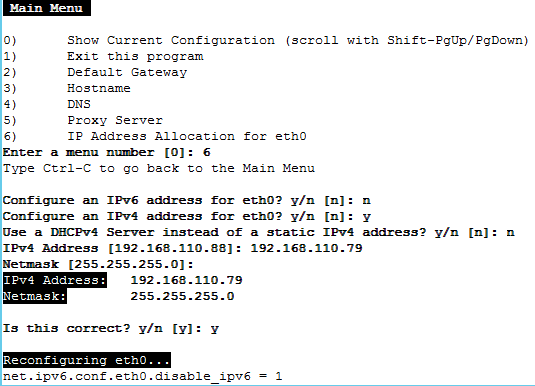
Changing the IP address of a Aria Automation node requires careful planning to avoid service disruption. Here’s a step-by-step guide: 1. Verify Health of vRealize Automation Run: vracli service status Ensure the cluster or node is healthy before proceeding. 2. Set Alternative IP Address vracli network alternative-ip set --dns <DNS_IP1>,<DNS_IP2> <New_IP>/<subnet> <Gateway_IP> 3. Shutdown Services /opt/scripts/deploy.sh --shutdown 4. Change IP Address For swapping the IP: vracli network alternative-ip swap 5. Reboot vRA shutdown -r now 6. Redeploy Services Finally, redeploy services: ...

September 5, 2024 · 1 min · Cosmin
Article cover image

Step-by-Step Guide for Changing the IP Address in Workspace ONE Access 3.3.7

Changing the IP address of the Workspace ONE Access 3.3.7 appliance is a multi-step process that requires careful attention to avoid service disruptions. Below are the key steps involved: 1. Stop Workspace ONE Access Services SSH into the appliance and stop all services to prevent any inconsistencies during the IP address change. service horizon-workspace stop 2. Update DNS Entries Modify both forward and reverse DNS records to reflect the new IP address. This is crucial for both name resolution and certificate validation. 3. Update the IP Address Access the vami configuration interface using the following command: /opt/vmware/share/vami/vami_config_net Follow the on-screen instructions to change the IP address, gateway, and subnet mask as needed. ...

September 5, 2024 · 2 min · Cosmin
Article cover image

Deploying the Aria Suite Lifecycle 8.18 using VCF 5.2

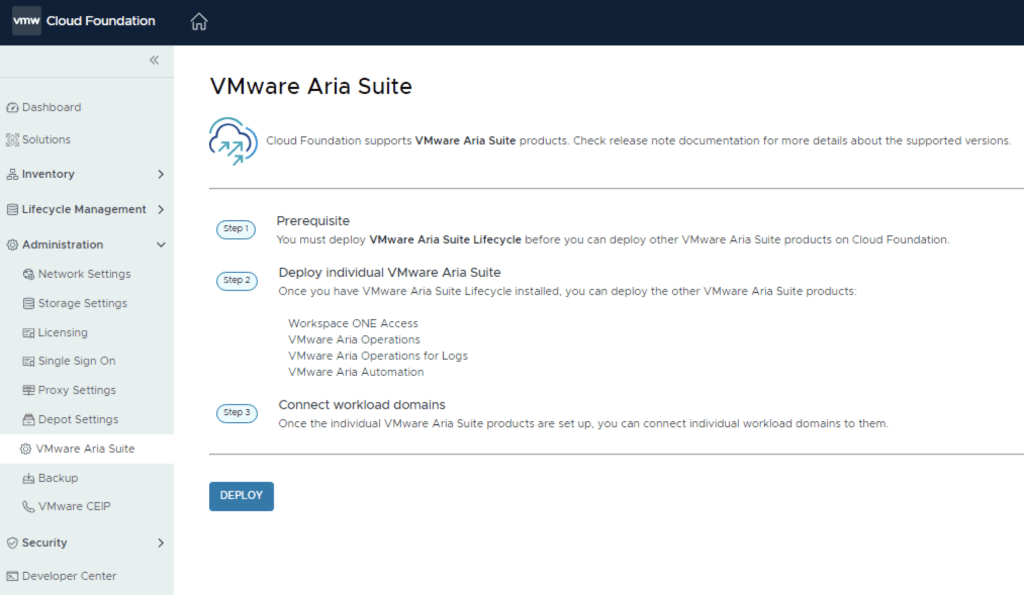
The official documentation for deploying the Aria Suite can be found here First step is to download the bundle by going to sddc-manager -> Repository -> Bundle management. Look for VMware Software Install Bundle - vRealize Suite Lifecycle Manager 8.18.0-24029603 After the download is complete we can go to Administration -> VMware Aria Suite and a Deploy button should be available. If the deploy button is not available due to X-Region Application Virtual Network is not created errorplease follow the instructions found here: ...

July 28, 2024 · 2 min · Cosmin
Article cover image

Upgrading VMware Aria Automation to 8.18

In this post, I will cover upgrading my 8.x Aria Automation appliance to version 8.18. As a prerequisite, we need to have VMware Aria Suite Lifecycle upgraded to 8.18. Instructions can be found here. Note: Following the VMware by Broadcom Day 2 transition on May 6, 2024, Customer Connect has been migrated to the Broadcom Support. This migration impacts the VMware Aria Suite Lifecycle as follows: All Product Support Packs, along with product and patch binaries, will now need to be downloaded from the Broadcom Support Portal Users must then manually map these into the VMware Aria Suite Lifecycle VMware Aria Suite Lifecycle can be upgraded using “Check Online” method. Product Support Packs are cumulative, incorporating all updates from previous product support packs as well as patches into the latest version. The Aria Automation binaries can be downloaded from here. In my case, it was VMware Aria Automation 8.18.0 Update Repository (Prelude_VA-8.18.0.35770-24024333-updaterepo.iso). Once downloaded, LCM supports local or NFS mappings. In my case, I uploaded the binary in /data ...

July 28, 2024 · 3 min · Cosmin

Upgrading Aria Automation to 8.18 via CLI: A Step-by-Step Guide

Upgrading Aria Automation (formerly known as vRealize Automation, vRA) is crucial for maintaining the efficiency, security, and compatibility of your automation tasks. For environments without VMware Aria Suite Lifecycle, you can still perform the upgrade using the vracli command-line utility. This blog post will guide you through the process of upgrading Aria Automation using two different methods: from a mounted ISO (CD-ROM) and from an online update repository URL. Prerequisites SSH access to your Aria Automation appliance. Sufficient backup of your Aria Automation environment. Downloaded ISO for the Aria Automation upgrade, if using the CD-ROM method. Link to the download Access to the Aria Automation appliance with root privileges. Check the health of the pods by running kubectl get pods -n prelude The upgrade will fail if any pods are in a non Running state. Method 1: Upgrading from a Mounted ISO (CD-ROM) Prepare the ISO Image: Before starting, ensure that the ISO image for the Aria Automation upgrade is downloaded and available. Mount the ISO to the Appliance: Mount the ISO image to your Aria Automation appliance. This step might require physical access to the server or through the management interface provided by your hypervisor (e.g., ESXi). To mount the CD-ROM we can use: mount /dev/sr0 /mnt/cdrom SSH into the Aria Automation Appliance: Access your appliance via SSH as the root user. Execute the Upgrade Command: Run the following command to start the upgrade process: vracli upgrade exec -y --profile lcm --repo cdrom:// This command will automatically start the upgrade process using the ISO mounted on the CD-ROM drive. The -y flag automates the acceptance of the upgrade process, and --profile lcm specifies the use of the lifecycle manager upgrade profile, even though the Lifecycle Manager itself is not being used. Monitor the Upgrade Process: The upgrade process will provide output to the console. Monitor this output for any errors or prompts that require manual intervention. Use 'vracli upgrade status --follow' to monitor the progress. Finalize the Upgrade: Once the upgrade completes, follow any on-screen instructions to finalize the upgrade. This may include rebooting the Aria Automation appliance. Post-Upgrade Steps Verify the Upgrade: Log in to the Aria Automation user interface to verify that the upgrade was successful and all services are running correctly. Review Logs: Check the upgrade logs for any warnings or errors that might need attention. Test Deployments: Execute a few test deployments to ensure that all functionalities are working as expected. Conclusion Upgrading Aria Automation without the Lifecycle Manager is straightforward with the vracli utility. Whether you’re upgrading from a mounted ISO or an online repository, the process is designed to be seamless. Always ensure that you have backups and a rollback plan in case of any issues. ...
July 28, 2024 · 3 min · Cosmin

Upgrading Aria Automation via CLI: A Step-by-Step Guide

Upgrading Aria Automation (formerly known as vRealize Automation, vRA) is crucial for maintaining the efficiency, security, and compatibility of your automation tasks. For environments without VMware Aria Suite Lifecycle, you can still perform the upgrade using the vracli command-line utility. This blog post will guide you through the process of upgrading Aria Automation using two different methods: from a mounted ISO (CD-ROM) and from an online update repository URL. Prerequisites SSH access to your Aria Automation appliance. Sufficient backup of your Aria Automation environment. Downloaded ISO for the Aria Automation upgrade, if using the CD-ROM method. Access to the Aria Automation appliance with root privileges. Method 1: Upgrading from a Mounted ISO (CD-ROM) Prepare the ISO Image: Before starting, ensure that the ISO image for the Aria Automation upgrade is downloaded and available. Mount the ISO to the Appliance: Mount the ISO image to your Aria Automation appliance. This step might require physical access to the server or through the management interface provided by your hypervisor (e.g., ESXi). To mount the CD-ROM we can use: mount /dev/sr0 /mnt/cdrom SSH into the Aria Automation Appliance: Access your appliance via SSH as the root user. Execute the Upgrade Command: Run the following command to start the upgrade process: vracli upgrade exec -y --profile lcm --repo cdrom:// This command will automatically start the upgrade process using the ISO mounted on the CD-ROM drive. The -y flag automates the acceptance of the upgrade process, and --profile lcm specifies the use of the lifecycle manager upgrade profile, even though the Lifecycle Manager itself is not being used. Monitor the Upgrade Process: The upgrade process will provide output to the console. Monitor this output for any errors or prompts that require manual intervention. Use 'vracli upgrade status --follow' to monitor the progress. Finalize the Upgrade: Once the upgrade completes, follow any on-screen instructions to finalize the upgrade. This may include rebooting the Aria Automation appliance. Method 2: Upgrading from an Online Update Repository URL SSH into the Aria Automation Appliance: Ensure you have SSH access to the appliance as the root user. Determine the Repository URL: Identify the URL of the update repository you intend to use for the upgrade. This URL should point to the VMware online repository or an internally hosted repository mirror. Execute the Upgrade Command: Use the following command to initiate the upgrade from the online repository: vracli upgrade exec --profile lcm -r <url> Replace <url> with the actual URL of your update repository. Similar to the CD-ROM method, --profile lcm indicates the lifecycle manager upgrade profile. Monitor the Upgrade Process: As with the ISO method, keep an eye on the console output for any actions required on your part. Use 'vracli upgrade status --follow' to monitor the progress. Complete the Upgrade: After the upgrade process finishes, perform any additional steps prompted by the system, which may include system reboots. Post-Upgrade Steps Verify the Upgrade: Log in to the Aria Automation user interface to verify that the upgrade was successful and all services are running correctly. Review Logs: Check the upgrade logs for any warnings or errors that might need attention. Test Deployments: Execute a few test deployments to ensure that all functionalities are working as expected. Conclusion Upgrading Aria Automation without the Lifecycle Manager is straightforward with the vracli utility. Whether you’re upgrading from a mounted ISO or an online repository, the process is designed to be seamless. Always ensure that you have backups and a rollback plan in case of any issues. ...

July 28, 2024 · 3 min · Cosmin
Article cover image

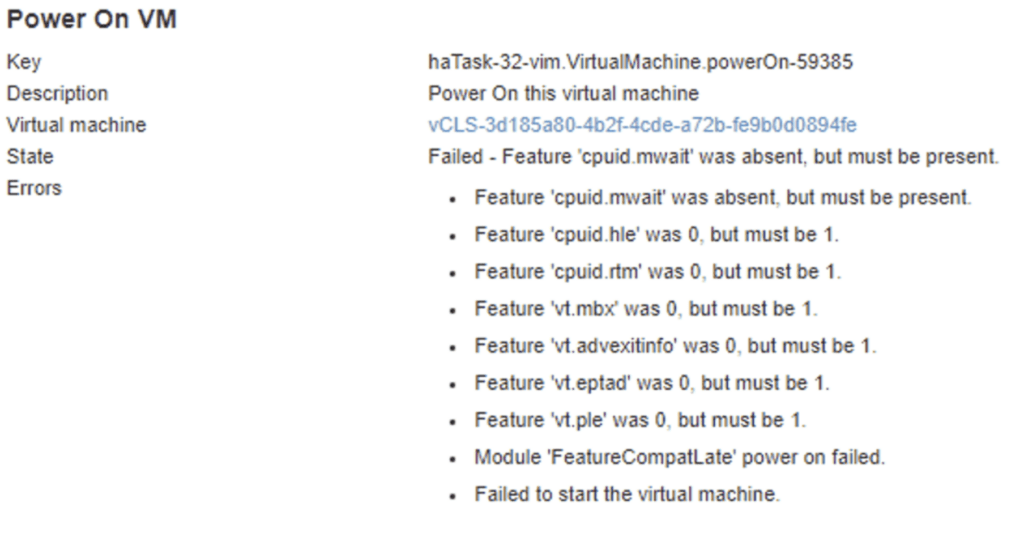
vCLS not starting with Failed - Feature 'cpuid.mwait' was absent, but must be present error

With the release of vCenter 7 Update 1, VMware introduced the vCLS (vSphere Clustering Service). More information can be found here. Looking at the error details it looks like it is looking for a feature called cpuid.mwait Reviewing the VMX file it seems like EVC is enabled on the vCLS VMs. I didnt want to enable EVC on the whole cluster so i wanted to do it only on the specific VMs. ...

July 28, 2024 · 2 min · Cosmin
Article cover image

VMware Aria Suite Lifecycle upgrade to 8.18

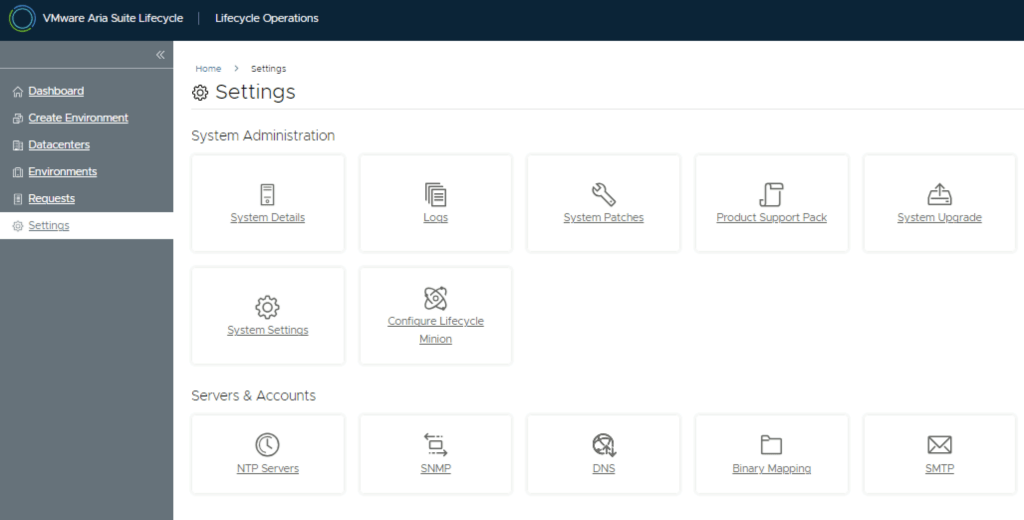
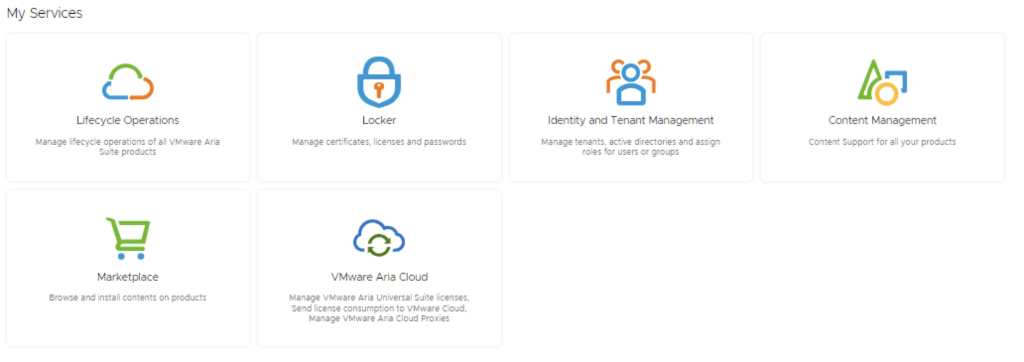
In this guide i will go over the steps of getting an existing 8.x vRSLCM appliance upgraded to the latest 8.18 release. The release notes can be found here. We can upgrade from vRealize Lifecycle Manager to VMware Aria Suite Lifecycle. The first step is to log in to VMware Aria Suite Lifecycle under the Lifecycle Operations section Go to Settings -> System Upgrade Click on Check for Upgrade ...

July 28, 2024 · 1 min · Cosmin
VCF Assistant
Hi! I'm the VCF Assistant. Ask me anything about VMware Cloud Foundation, ESXi, vCenter, NSX, Aria Suite, or infrastructure automation.